How daily targets are calculated
M0VE sets your nutrition targets dynamically — they change every day based on what is on your training plan. There is nothing to configure manually. Open the app and your targets for the day are already set.
How daily targets are calculated
Your targets are built around three variables: your body weight, your training load for the day, and your sport.
Training days — carbohydrate targets increase to fuel your session and support recovery afterwards. The harder the session, the larger the increase. A 90-minute threshold ride will push carb targets significantly higher than a 45-minute easy spin.
Rest days — carbohydrate targets pull back to reflect reduced energy demands. Protein stays consistent regardless of training load — muscle repair is ongoing even when you are not training.
Per-meal targets — your daily total is split across your meal slots: breakfast, pre-workout, lunch, and dinner. You are not working to a single daily number. Each slot has its own target so your fuelling is timed around your session, not just totalled at the end of the day.
Connecting training data
For targets to update based on your actual sessions, connect at least one training source in My Connections. M0VE reads your planned and completed workouts and adjusts targets accordingly.
If no training source is connected, targets are calculated from a default training load based on your sport and goals. Connecting a device always gives more accurate targets.
The recovery window
In the 45 minutes after a training session, your body is primed to absorb nutrients more effectively than at any other point in the day. Protein drives muscle repair. Carbohydrates begin restoring glycogen. What you eat in this window has a measurable impact on how well you recover and how you feel in the next session. You can learn all about it here.
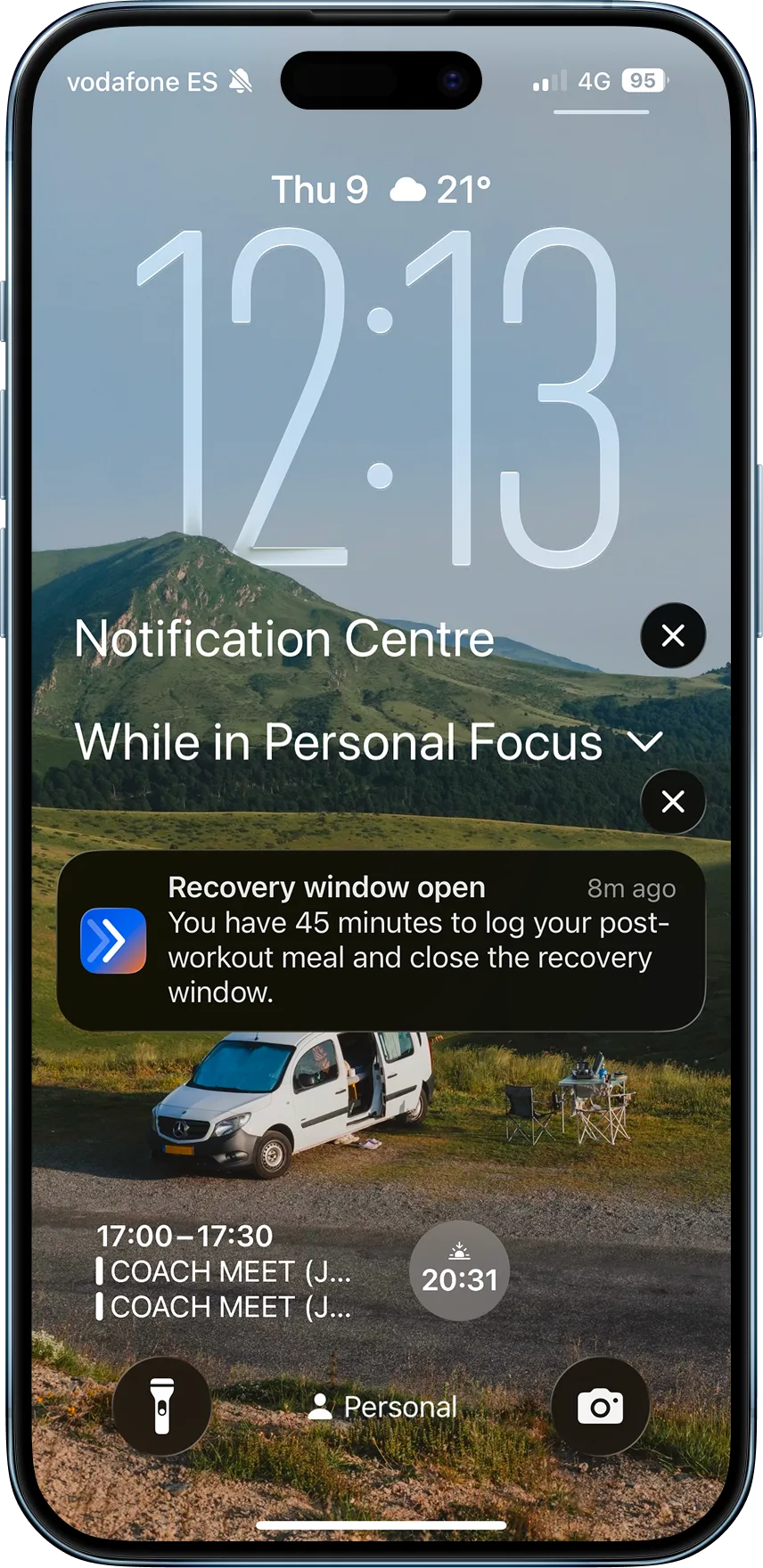
M0VE opens the recovery window automatically when your session ends:
Your macro targets shift to a protein-forward split for the window
A notification prompts you to log your recovery meal
The window counts down and closes after 45 minutes
You do not need to configure anything. When your session finishes, the prompt appears. Log your meal and M0VE handles the rest.
Why targets sometimes look different to what you expect
Targets seem low on a rest day — this is intentional. Carbohydrate targets are deliberately reduced on rest and easy days. Protein and fat targets remain stable.
Targets haven't updated after a hard session — check that your training source is connected under My Connections and that the session has synced. Targets update when a workout is detected. If a session is not appearing, disconnect and reconnect your training source to trigger a fresh sync.
Targets are based on a planned session but I did something different — once a completed workout syncs, targets recalculate based on actual effort. If you did an unplanned session, log it manually in the workout section.