Importing a workout file
Got a planned workout from your training app or your coach? Import the .fit file into the Plan tab and M0VE adds the session to your plan, with its carbs per hour.
What you can import
Any planned workout exported as a .fit file. For example from Garmin Connect, TrainingPeaks or Wahoo, or a file your coach sends you.
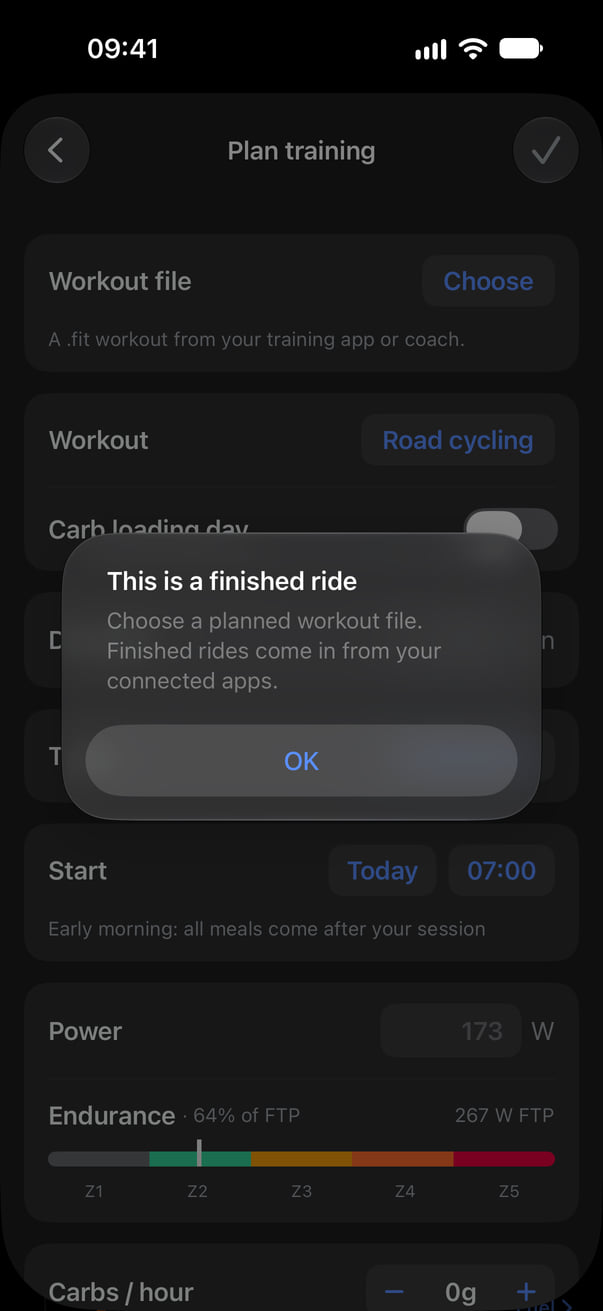
Only planned workouts work. Finished sessions already come in from the apps you connect to M0VE, so there is no need to import them.
Import one workout
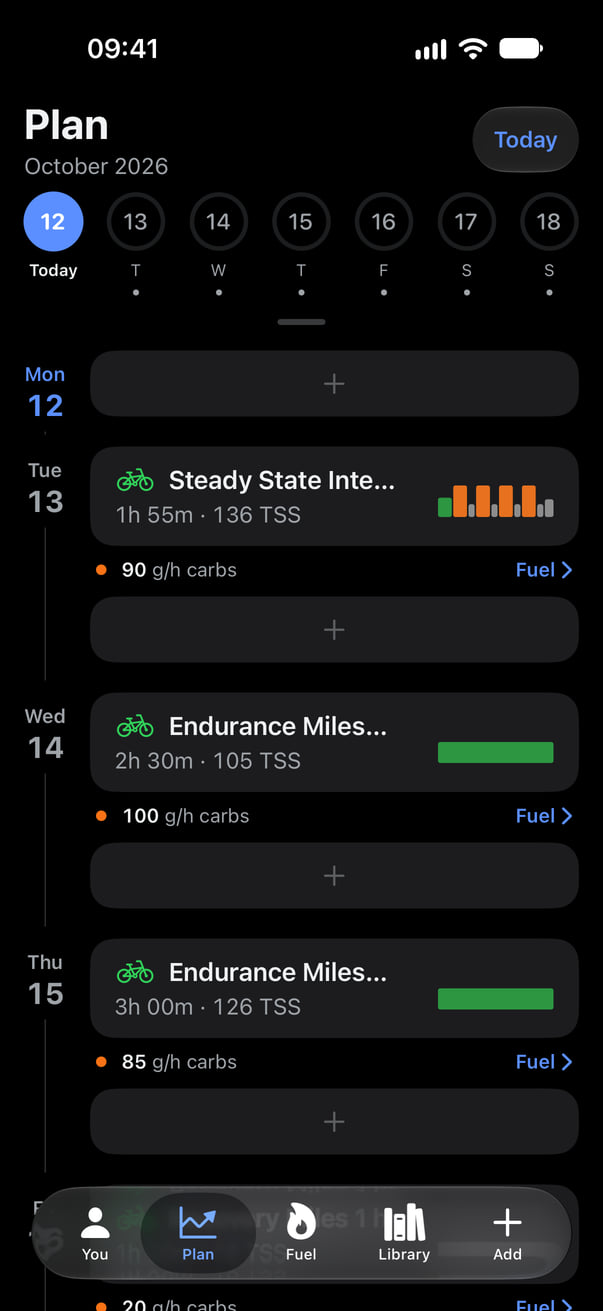
- Open the Plan tab and tap + under the day you want. Plan training opens.
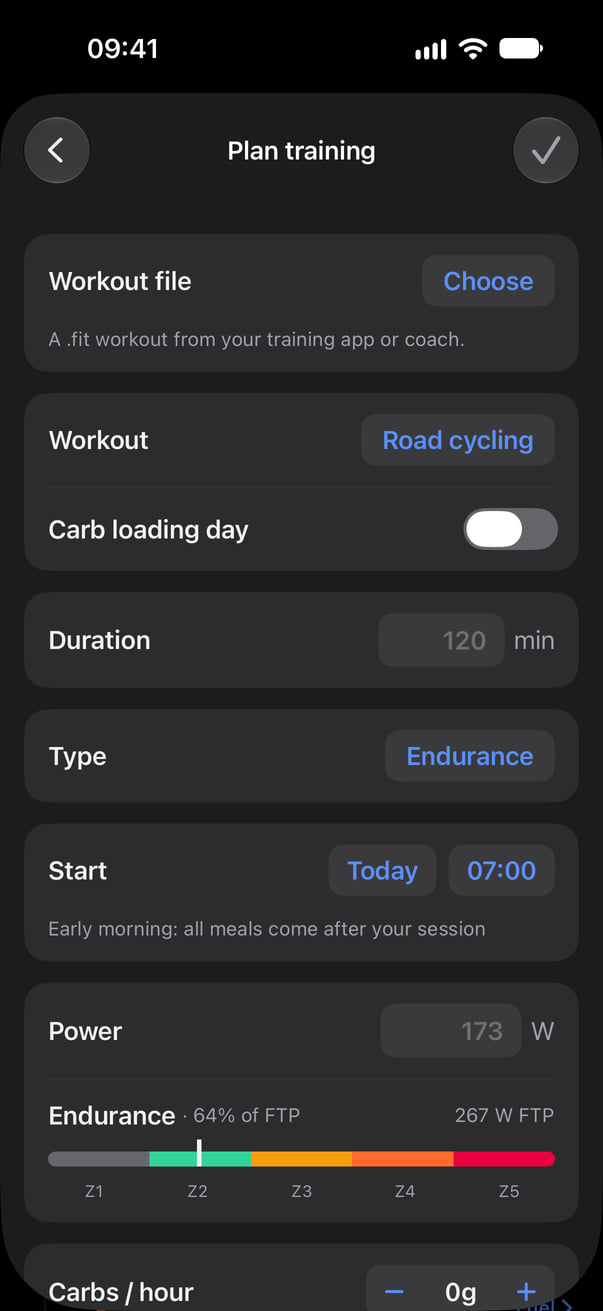
- At the top, next to Workout file, tap Choose.
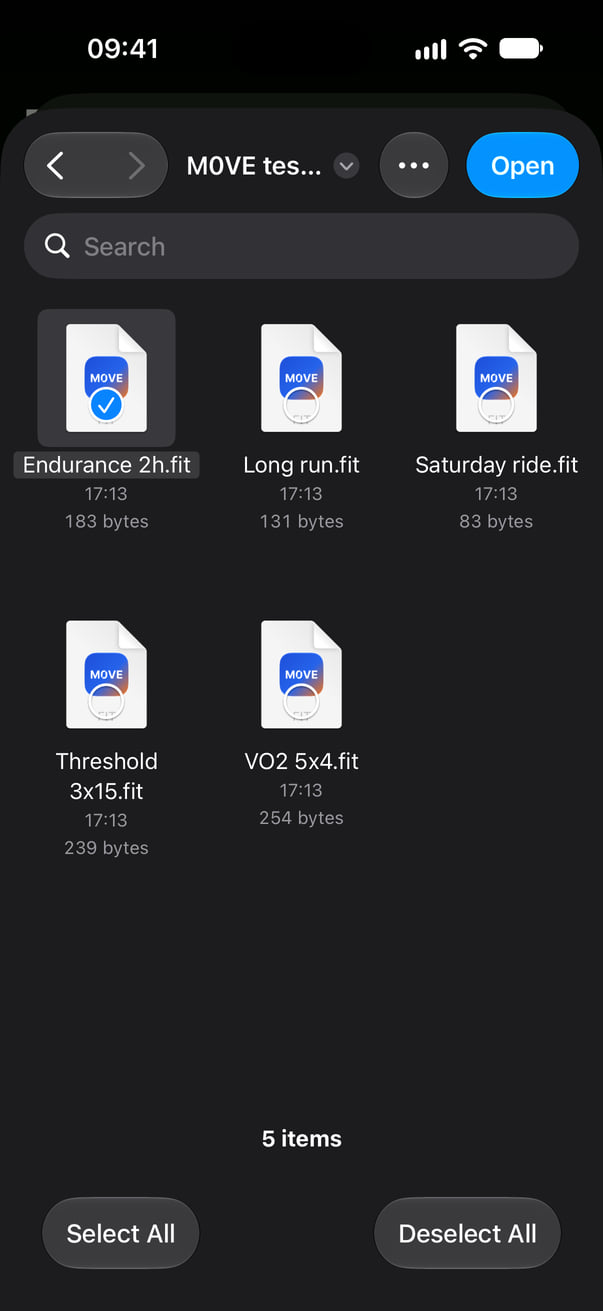
- Pick the .fit file and tap Open.
What comes from the file
The name, the sport, the duration and the steps all come from the file. You pick the day and the start time.
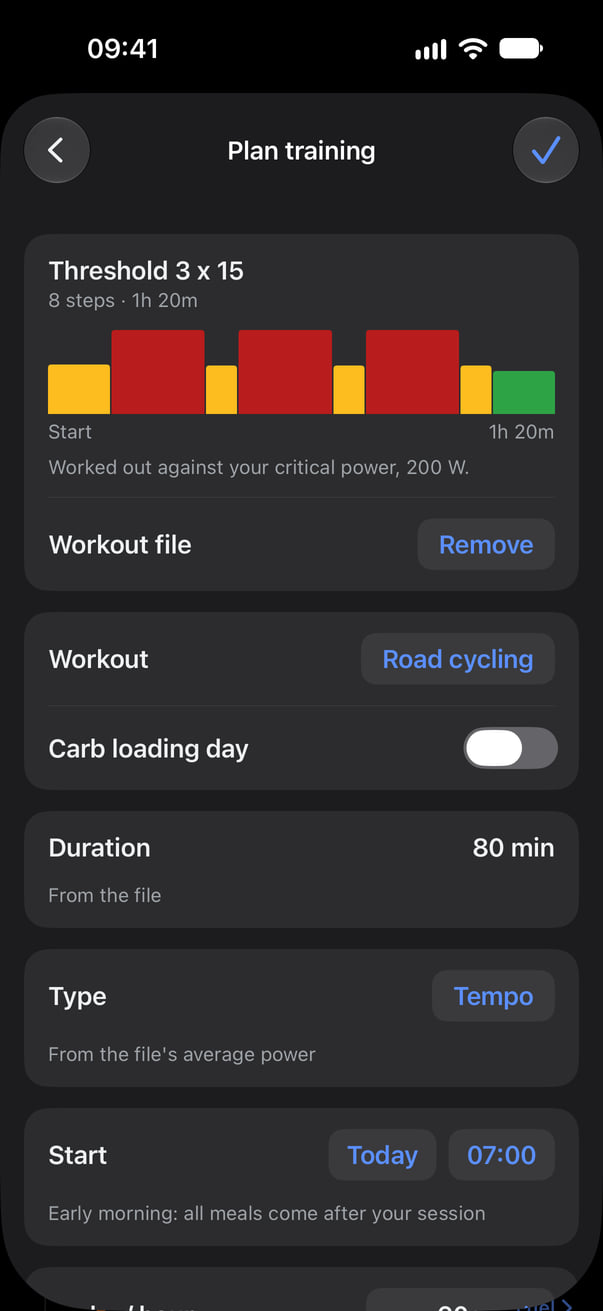
- The card at the top shows the workout's name, how many steps it has, how long it is, and its steps as bars.
- Duration is set by the file and stays fixed while the file is on.
- Type is set from the average power of the steps.
- There is no Power card, because the steps set the power.
- Tap Remove to take the file off.
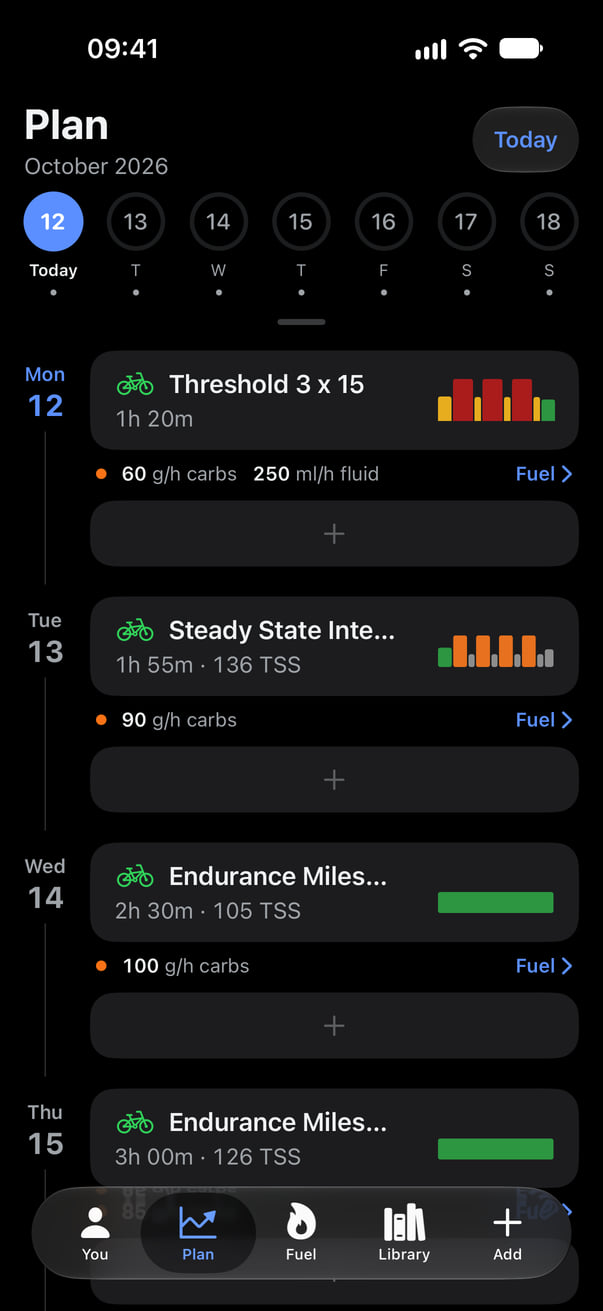
Tap the tick to save. The workout shows on your Plan tab with its steps and its carbs per hour.
Import a week at once
On iPhone, Choose takes several files at once. Tap each file you want, or Select All, then tap Open.
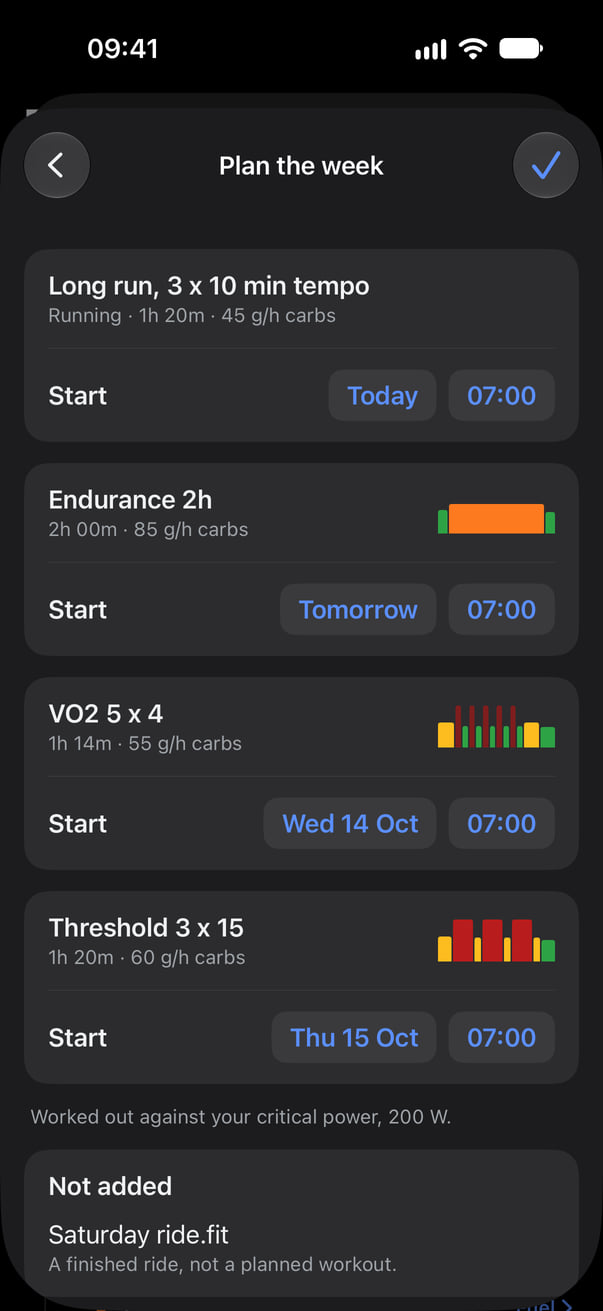
M0VE opens Plan the week. It puts one workout on each day, starting from the day you tapped, each at 07:00. Change any day or time, then tap the tick to save them all.
Any file that can't be used is listed under Not added, with the reason.
Open a file from another app
You can also share or open a .fit file into M0VE from Files, Mail, Messages or another app. M0VE opens Plan training with the file on, ready for you to pick the day and start time.
On iPhone, sharing takes one file at a time. Use Choose for several. On Android, Share takes one file or several.
Fuelling from the steps
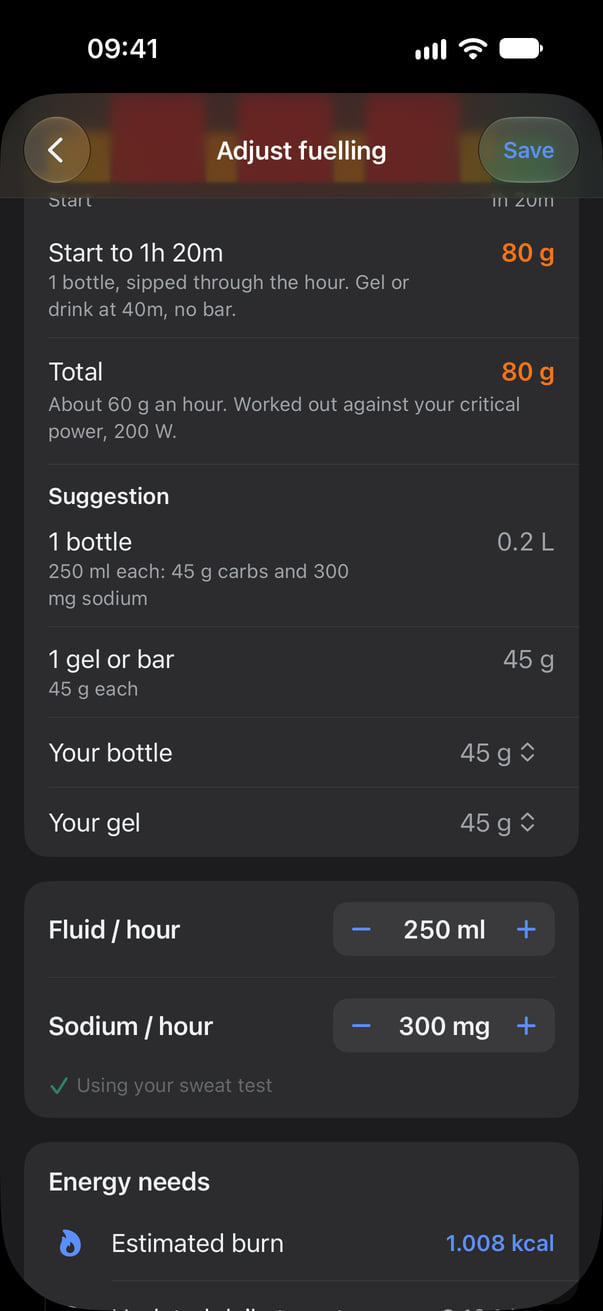
For a cycling workout with power steps, M0VE works out your carbs per hour from the steps, against your critical power. If you haven't set a critical power, it uses your FTP. The card tells you which, for example “Worked out against your critical power, 200 W.”
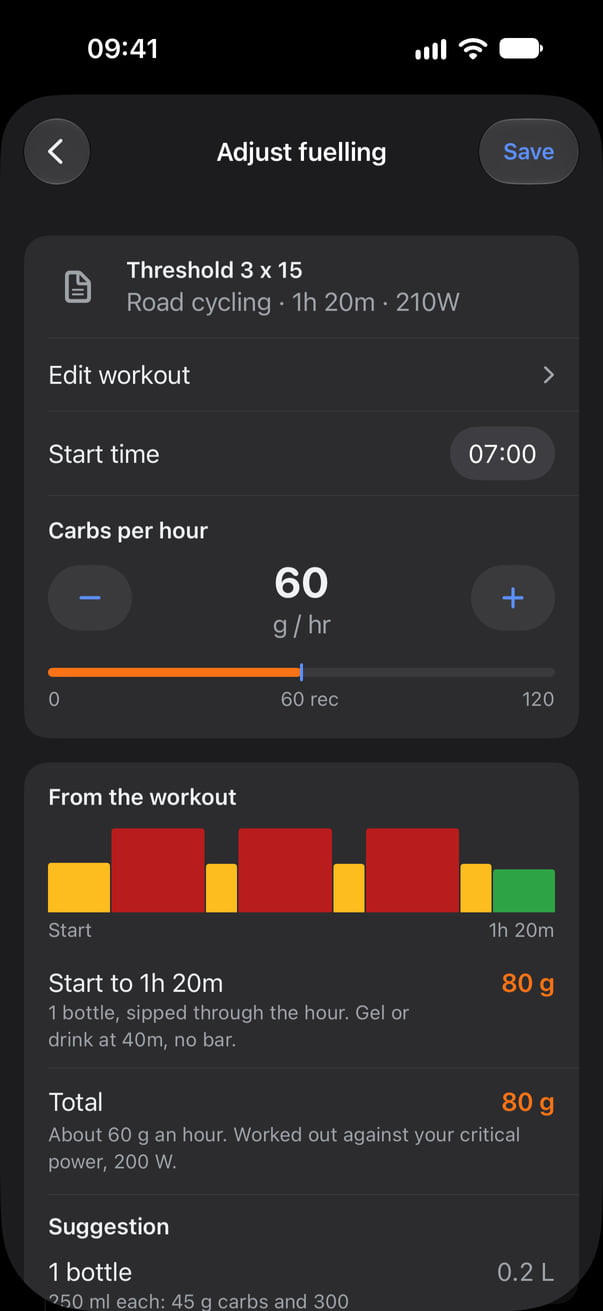
Tap the workout on the Plan tab to open Adjust fuelling. At the top, Edit workout opens Plan training so you can change the workout. Below it are the start time and your carbs per hour.
Under From the workout is the plan step by step: the carbs for each stretch of the session, the total, and a suggestion of bottles and gels or bars.
- Steps set as a % of FTP use the FTP in your profile. If you haven't set an FTP, M0VE asks you to set it and choose the file again.
- Runs, and workouts without power targets, still come in as planned sessions with their duration. Their carbs per hour follow the normal rules.
Your file
M0VE reads the file to plan the session and doesn't keep it. You need to be signed in and online to import.
If something goes wrong
- This is a finished ride. The file is a ride you have already done. Choose a planned workout file instead.
- Couldn't read this file. It needs to be a .fit workout file.
- Couldn't reach M0VE. Importing needs a connection. Try again once you are online.