Coach Hub
Your athletes' nutrition on a big screen. See the training load they're under, set their targets, add their food and session fuel, send them recipes, message them, and run your team and your library in one place.
Getting started
Signing in
- Go to movenutrition.app/coach/hub on a laptop or desktop.
- Sign in with the email and password you use in the M0VE app, or click Sign in with Google.
- The Coach Hub opens on Nutrition, showing your own nutrition.
The Coach Hub is for M0VE coaches and the athletes on their teams. Not a coach yet? Fill in the coach sign-up form. If you sign in without access, you see a message saying so, with the email you are signed in as.
It is built for a computer screen. Shrink the window and the pages rearrange, but a phone is better served by the M0VE app.
Finding your way around
The rail down the left has three buttons:
- Nutrition: Dashboard, Progress, Log, Calendar and Recipes, for you or the athlete you have open.
- Team: Athletes, Library, Staff and Settings. Only coaches see Team.
- Settings, at the bottom: the account you are signed in with, and Sign out.
Tabs along the top move between the pages in each part. If your team has its own logo and colour, the Coach Hub uses them in place of the M0VE ones.
Your teams
Every team is its own space. Its athletes, its staff, its library, its invite link and its branding belong to that team only. If you coach more than one team, nothing from one ever shows in another.
Switching team
- Click Team on the rail.
- Click the team name at the top left. It shows Team with a small arrow when you are in more than one.
- Pick the team. Athletes, Library, Staff, Settings and the athlete list all switch to it.
The Coach Hub remembers the team you picked the next time you sign in. You can also switch by clicking a team in the list on the left of the Athletes page. If you are in one team, you just see its name.
Athletes
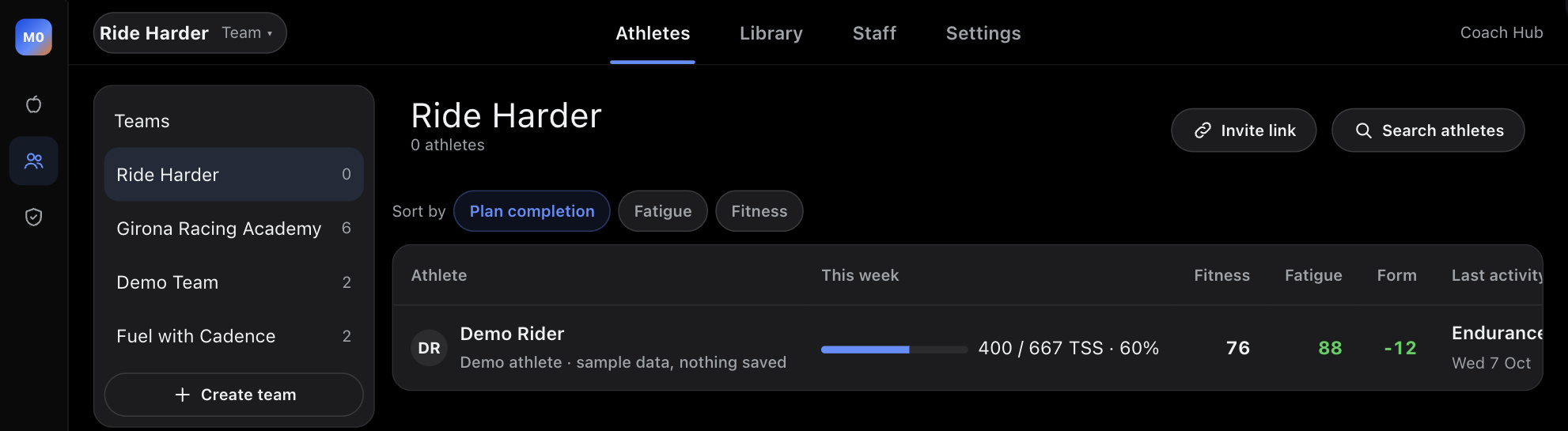
Click Team on the rail. Athletes lists everyone on the team you have open, one row each:
- This week: training load done against planned, as TSS, with a bar and the percentage of the plan completed.
- Fitness, Fatigue and Form: their long-term load, short-term load and the balance between the two.
- Last activity: their most recent workout from any source, with the date.
- Last session fuel: the carbs they took in their last session, as grams per hour where the session length is known.
Sort the table by Plan completion, Fatigue or Fitness. Click a row to open that athlete.
You see the training they do, but you never set it. The load is there so you can match the fuel to it: a big week on light intake, or a hard session with little carbohydrate, stands out straight away.
Inviting athletes
- On the Athletes page, click Invite link. The link for the team you have open is copied.
- Send it to your athlete.
- They open it on their phone and join your team in M0VE Nutrition. The invite carries your team's name and colour.
Once they join, they appear on the team and in the athlete list at the top left of Nutrition.
The demo athlete
Until your team has its first athlete, Demo Rider shows on the Athletes page, marked Demo athlete. Click it to try every page with real-looking data. Nothing you do to Demo Rider is saved. It disappears once a real athlete joins. Turn on Show demo athlete in Settings to bring it back at any time.
Create a team
Click Create team under the team list, name it, and it opens straight away, ready for its own invite link and branding.
Opening an athlete
In Nutrition, the name at the top left is the person you are looking at. It starts on You, your own nutrition.
- Click the name at the top left.
- Type to find an athlete, or scroll. Athletes are grouped by team.
- Pick them. If they are on a different team from the one you have open, the Coach Hub switches to their team too.
A blue bar then runs across the top with their name and team. Everything you change while it is there goes on their calendar and their targets. Click Back to my team in the bar to return to the Athletes page, or pick You to go back to your own nutrition.
Nutrition pages
Dashboard
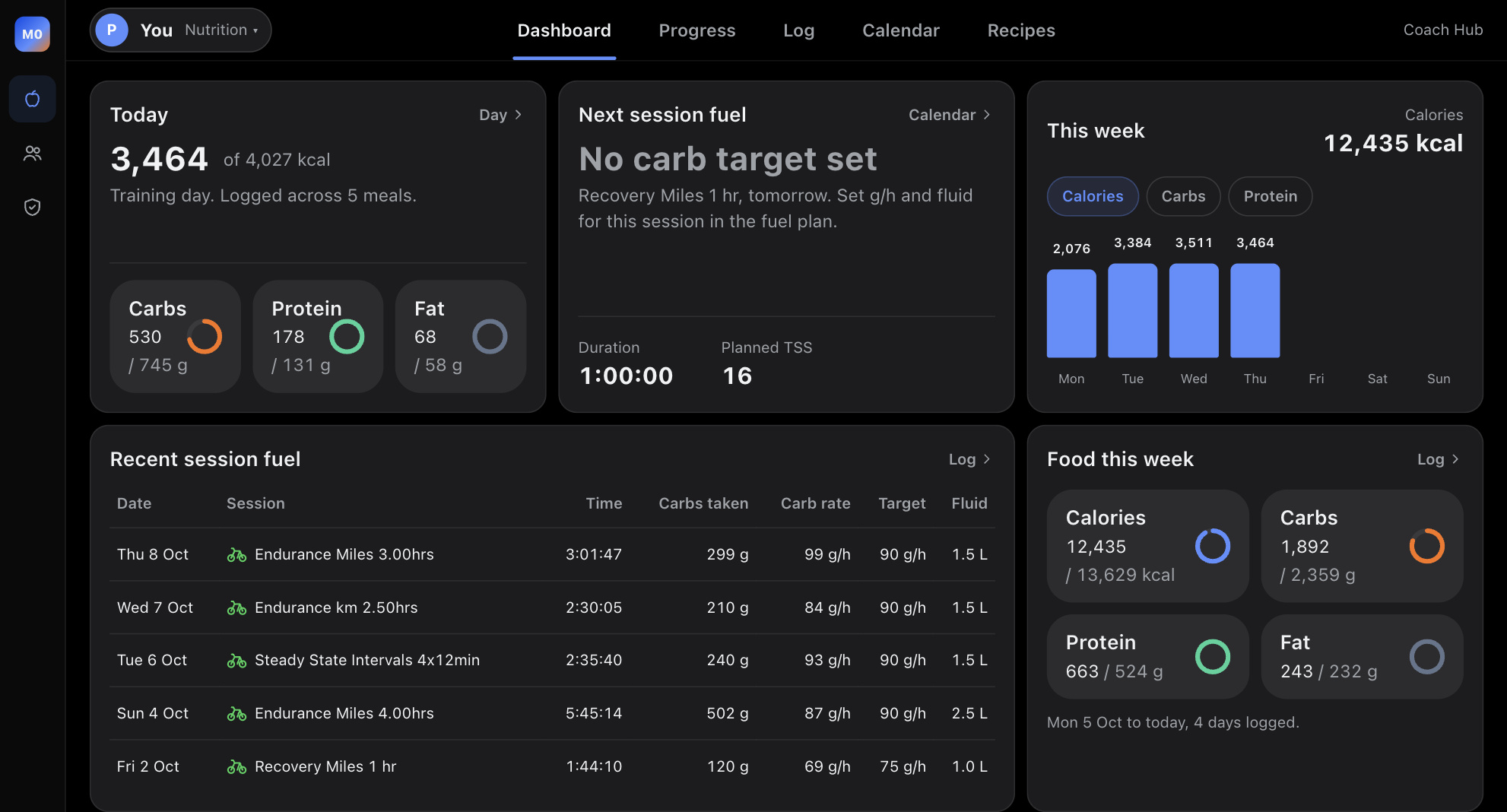
- Today: calories against the day's target, whether it is a training or rest day, and rings for carbs, protein and fat. Click Day for the full day.
- Next session fuel: the carb target in grams per hour for the next planned session, its length and planned load.
- This week: calories, carbs or protein per day.
- Recent session fuel: each recent session with the carbs taken, the carb rate against target, and fluid.
- Upcoming session fuel, Food this week, Hydration, macro split and weight further down.
Progress
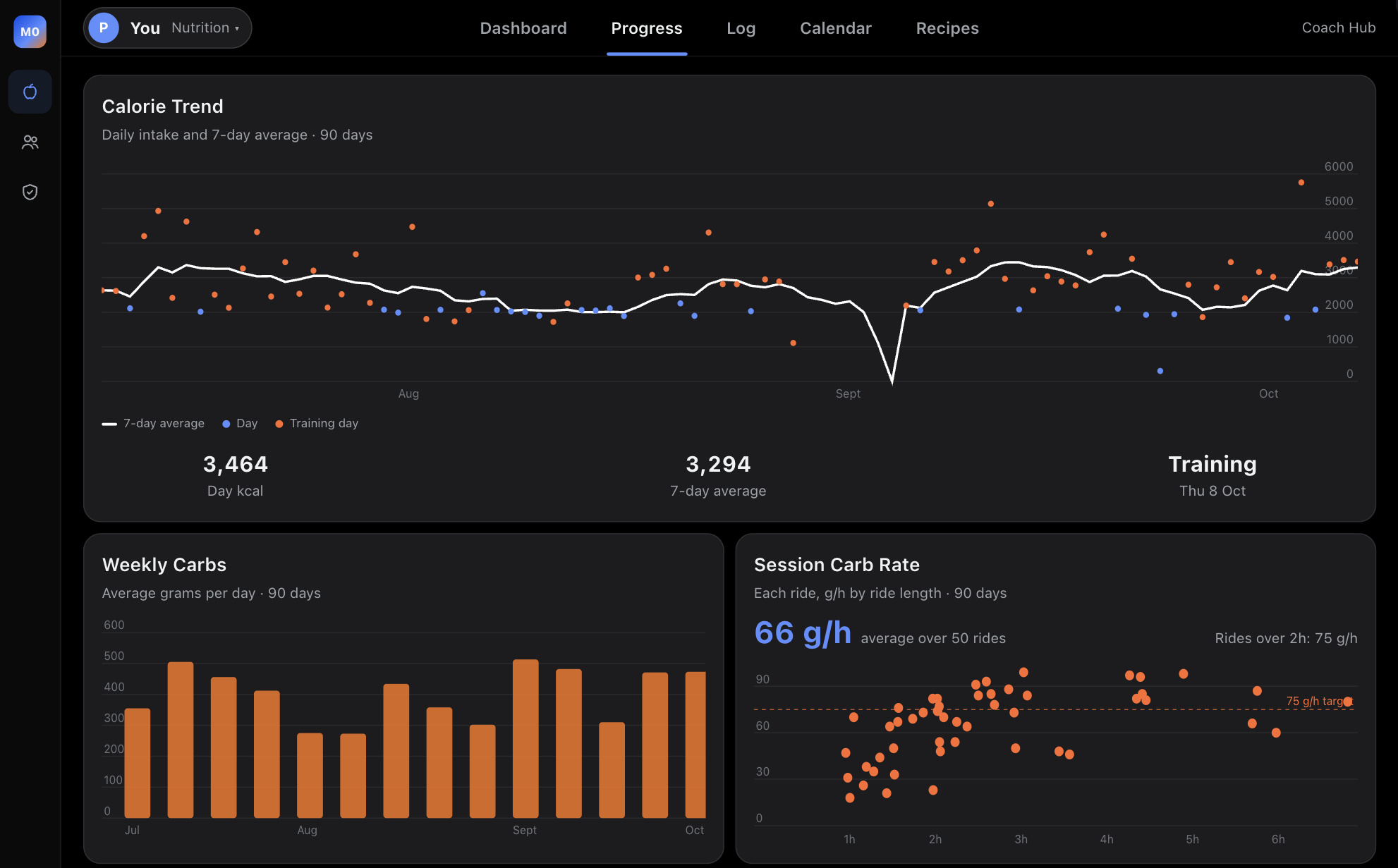
The last 90 days: the calorie trend with a 7-day average, average carbs per week, the carb rate of every session plotted against its length, the last sessions' fuel, key numbers (weight, calories and fluid per day) and the macro profile per kilo of body weight.
Log
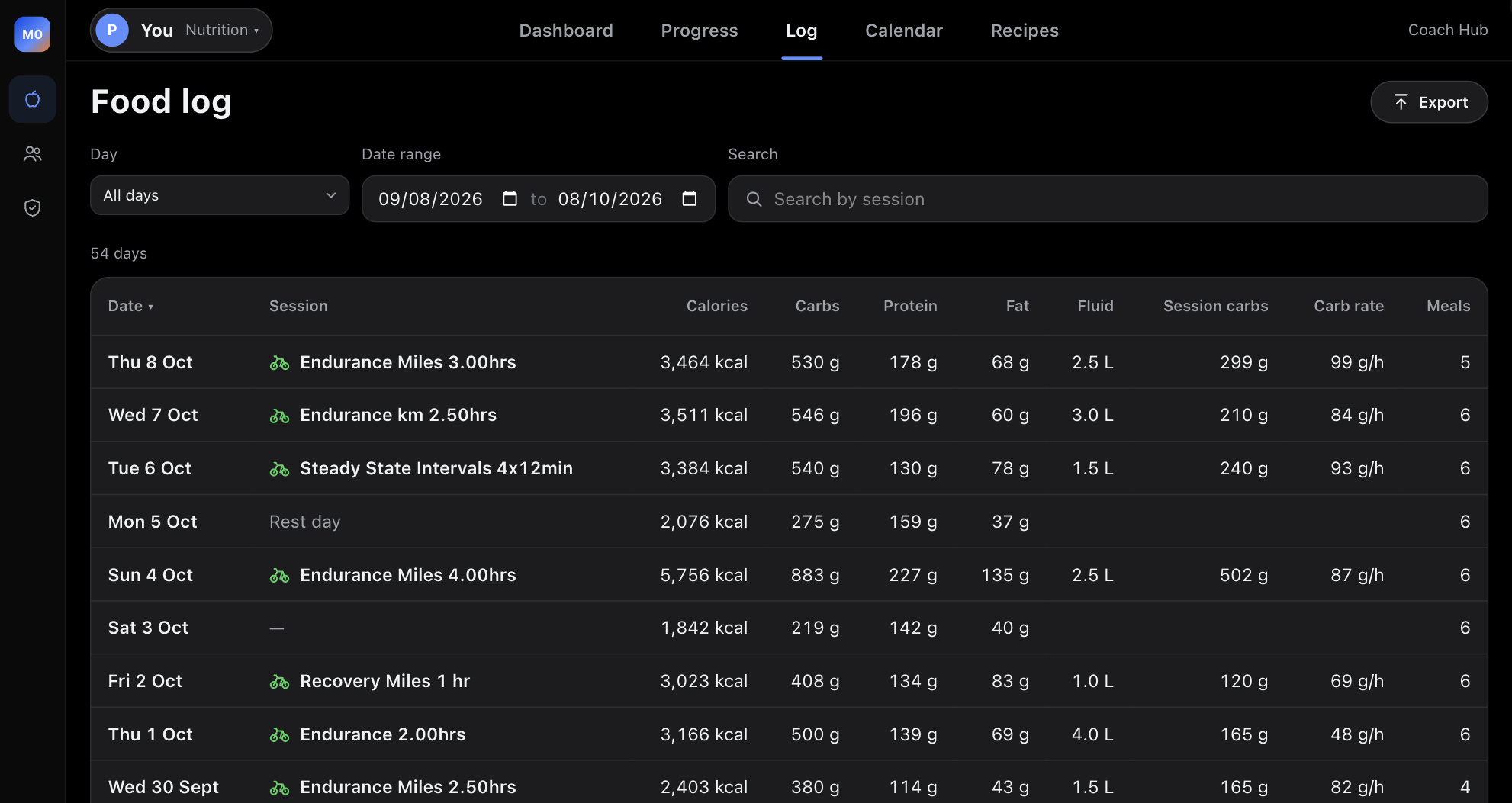
Every logged day, one row each, with calories, carbs, protein, fat, fluid, the session that day, the carbs taken in it and the carb rate.
- Day: all days, training days or rest days.
- Date range: pick the start and end.
- Search: find a session by name.
- Click a day to see every meal. Export downloads the table as a spreadsheet.
The calendar
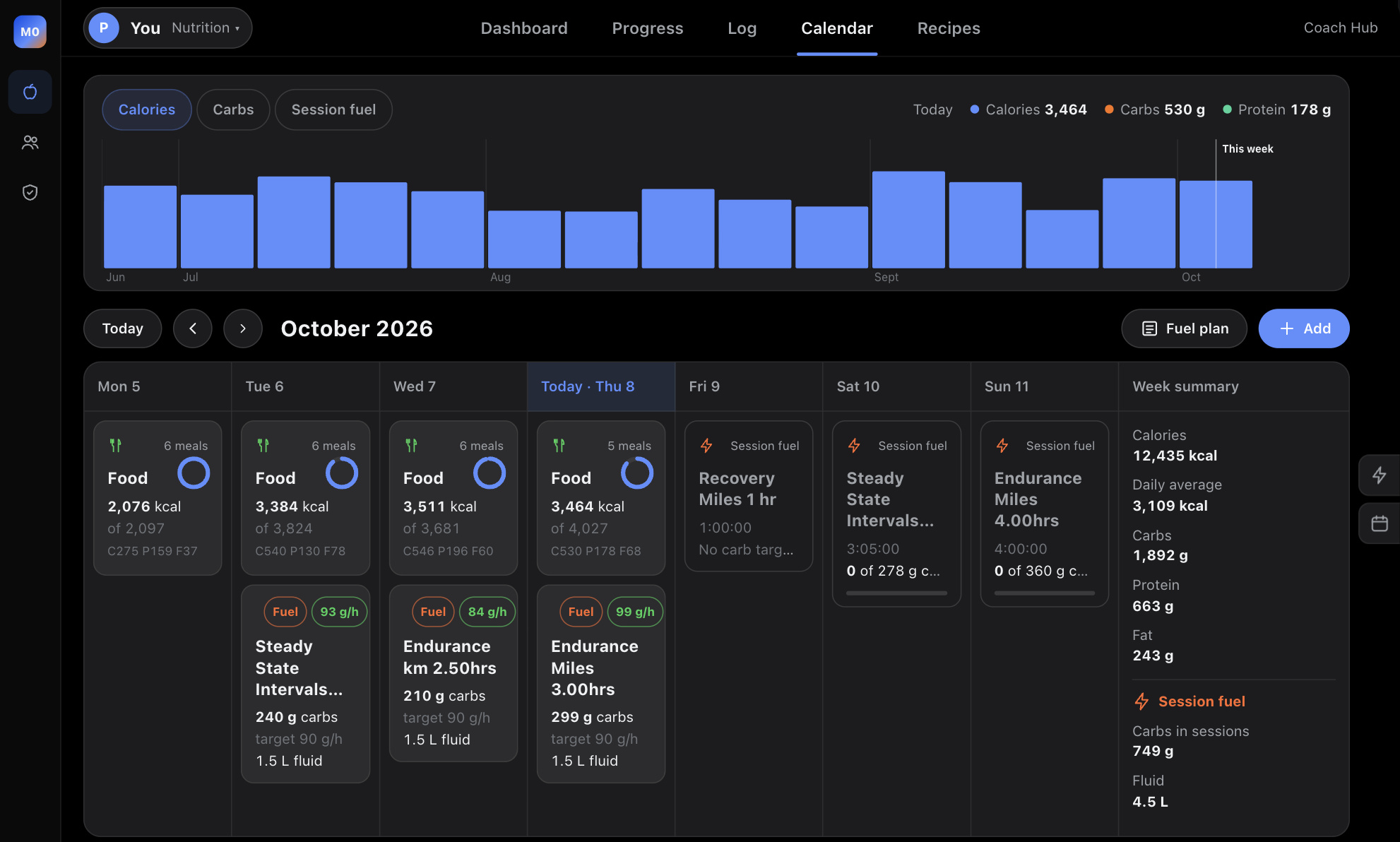
Open Calendar. It shows two weeks at a time, with a strip of weekly calories, carbs or session fuel above. Use Today and the arrows to move between weeks. Each week has a summary down the side: calories, daily average, macros and the fuel taken in sessions.
On each day you see:
- a Food card for a logged day, with a ring that fills as calories reach the day's target,
- a Fuel card for a completed session, with the carbs and fluid taken and the carb rate,
- each planned session with its carb target and how much fuel is on it so far.
Adding food
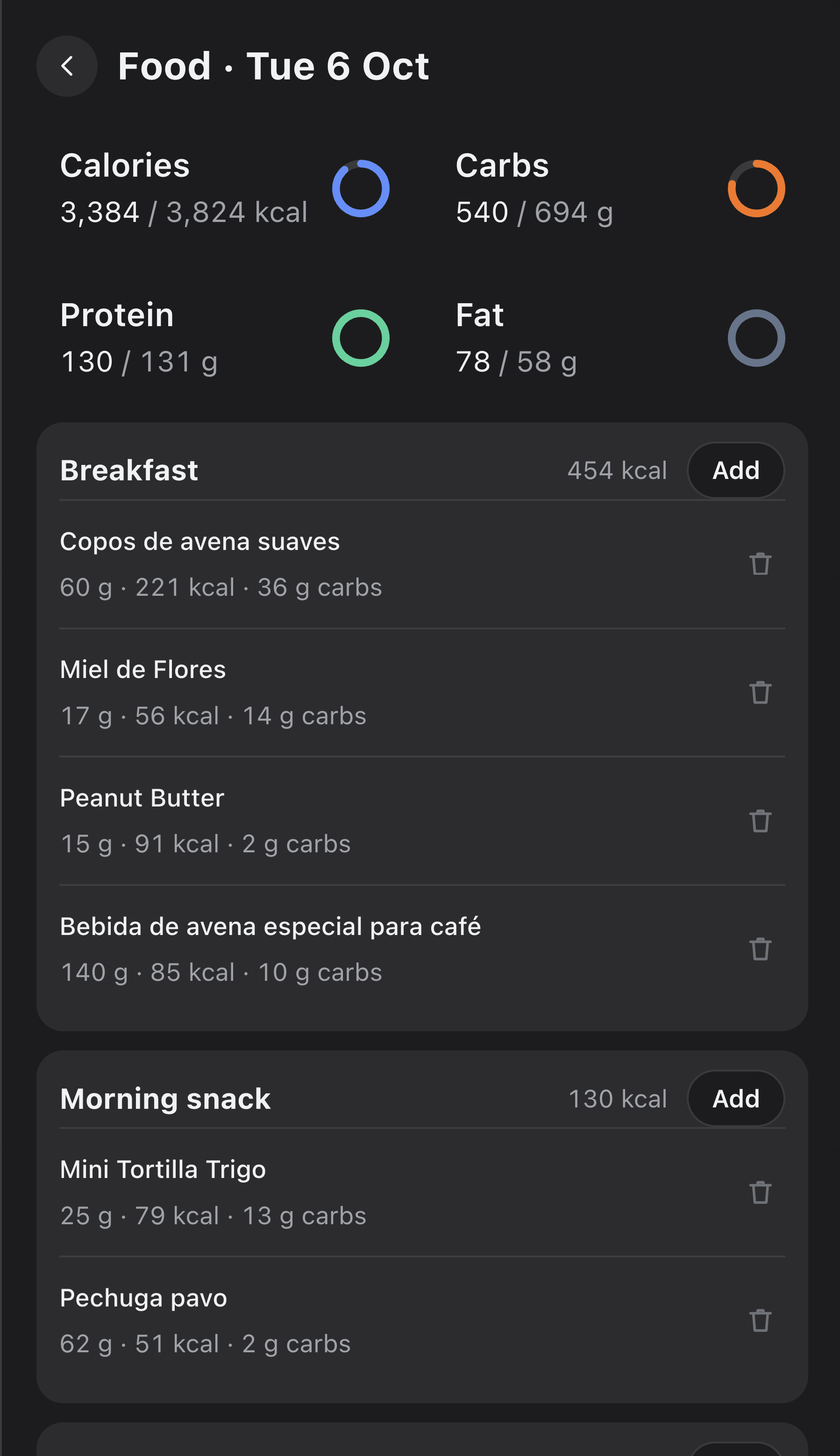
- Click the Food card on a day. The day's meals open on the right, with rings for calories, carbs, protein and fat against their targets.
- Click Add on a meal.
- Choose from Search (the full food list), My meals, Recipes, Sports nutrition or Quick entry for a name and numbers.
- Set the amount and add it.
To remove something, click the bin next to it.
Adding session fuel
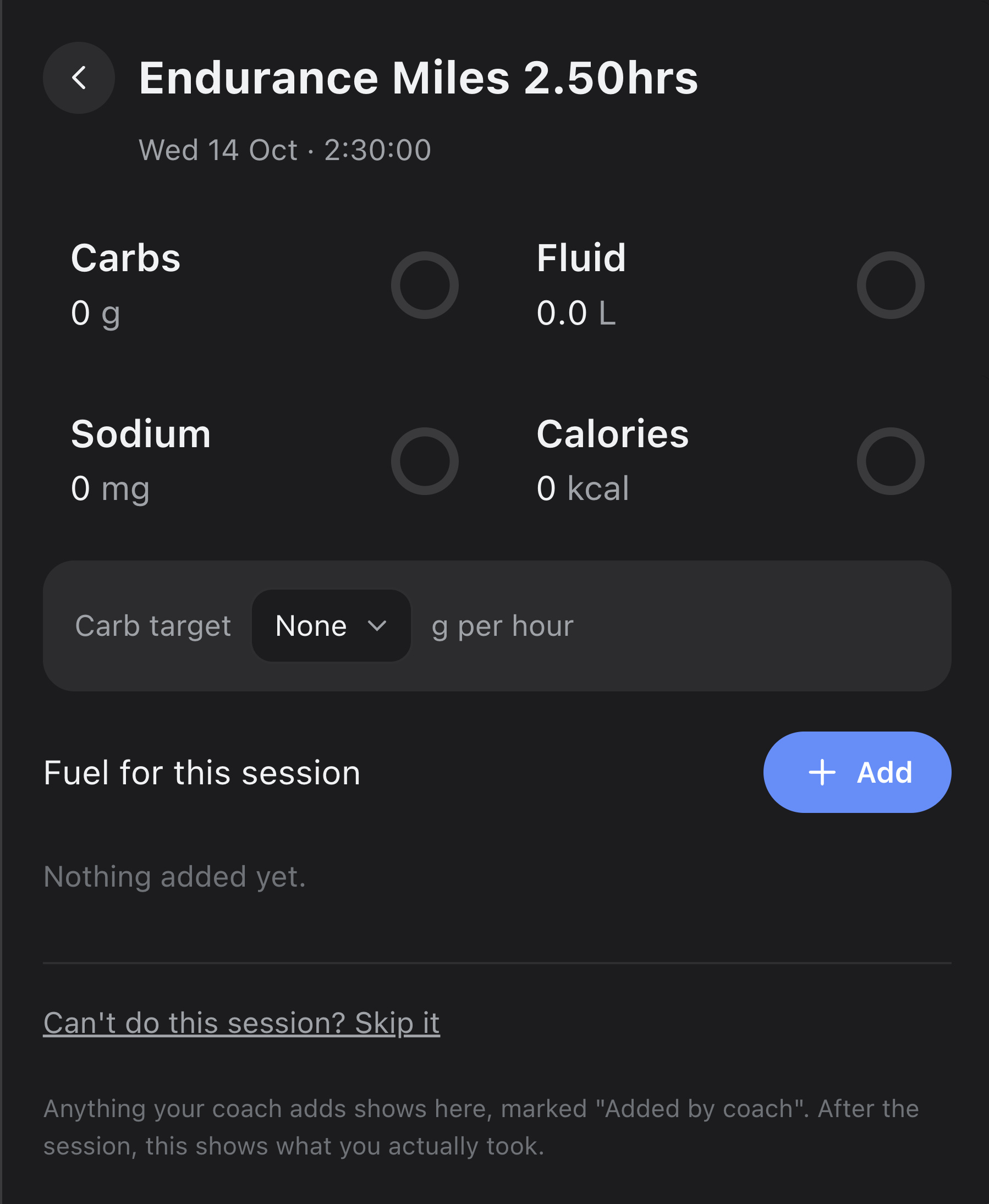
- Click a planned session.
- Set the Carb target in grams per hour if it needs one.
- Click Add and pick from Fuel and foods or the athlete's Fuel packs.
The panel totals carbs, fluid, sodium and calories against the target as you add. After the session, it shows what they actually took.
Anything you add goes into the athlete's M0VE app and is marked Added by coach. You can remove what you added. What the athlete logged stays theirs.
Skipped sessions
Athletes can skip a planned session and give a reason, like ill, tired or travel. It then shows as Skipped on the calendar with their reason. Past sessions with nothing done show as Missed in the Log. Only the athlete sets the reason.
Fuel plans
Click Fuel plan on the calendar to plan fuelling weeks ahead. Set carbs and fluid per hour on each planned session, drag fuel onto the days, add weeks as you need them, and click Save plan. The session targets go to the athlete's app.
Recipes
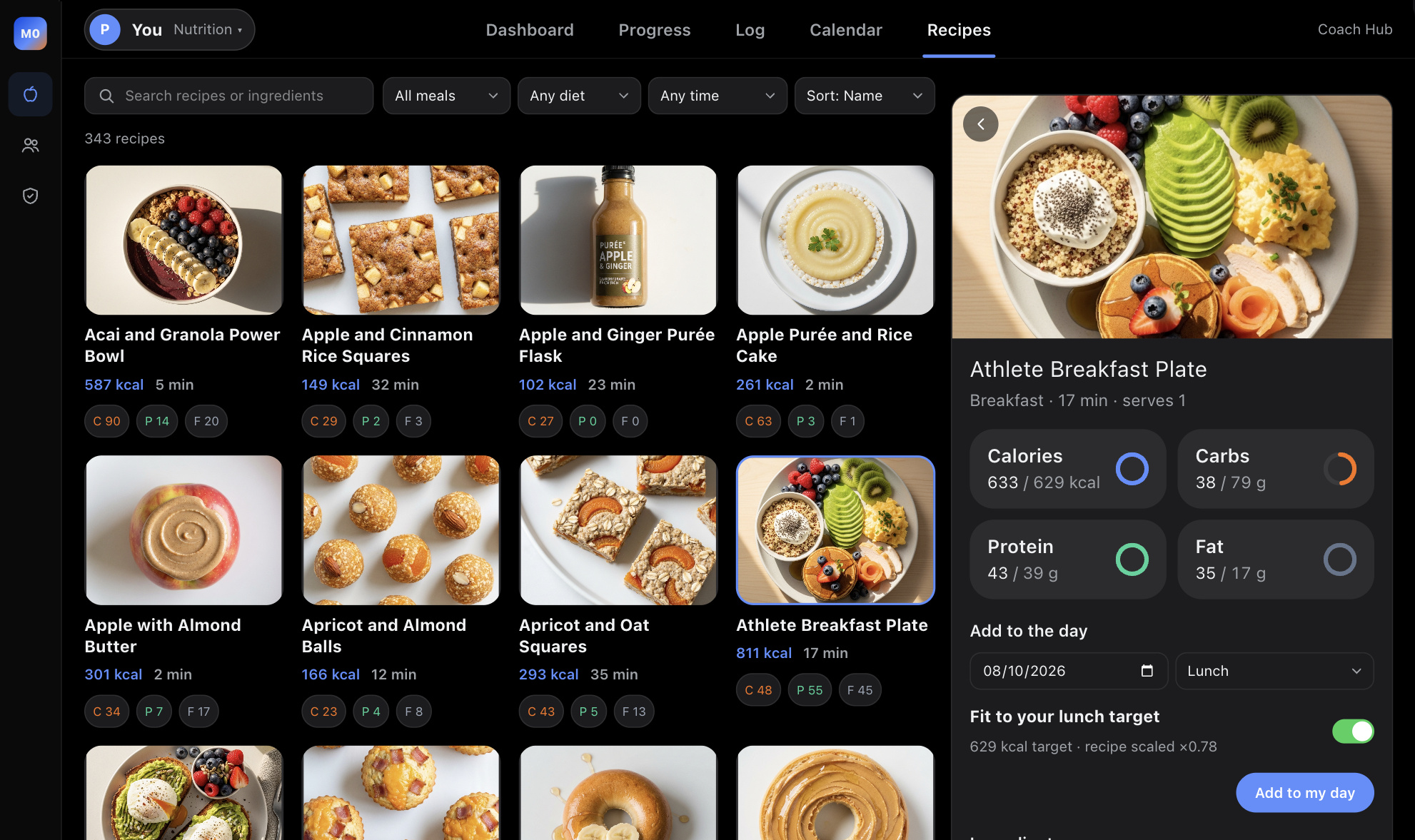
The full M0VE recipe list, with photos, is under Nutrition, Recipes, and under Team, Library. Calories and macros on each card are for one serving.
Finding a recipe
- Search by recipe name or ingredient.
- All meals: breakfast, lunch, dinner, snack, recovery, race day and more.
- Any diet: vegetarian, vegan, gluten free, dairy free, nut free or pescatarian.
- Any time: 15, 30 or 45 minutes or less.
- All recipes (Library only): M0VE recipes or your team's own.
- Sort by name, calories, protein, carbs or quickest. Clear filters resets them.
Fitting it to a meal
- Click a recipe. It opens on the right with its photo, macro rings, ingredients and method.
- Pick the date and the meal, and in Library the athlete.
- Leave Fit to target on. The recipe scales to that meal's share of the day's calories. The rings fill against the meal's targets, and the ingredient amounts scale with it.
- Turn it off to use one serving, as the recipe is.
Sending or adding it
- In Library, click Send to the athlete. It lands in their app with a notification, at exactly the numbers you saw.
- In Nutrition, click Add to my day, or Add to the athlete's day when you have an athlete open. It logs into that meal straight away.
The Coach page
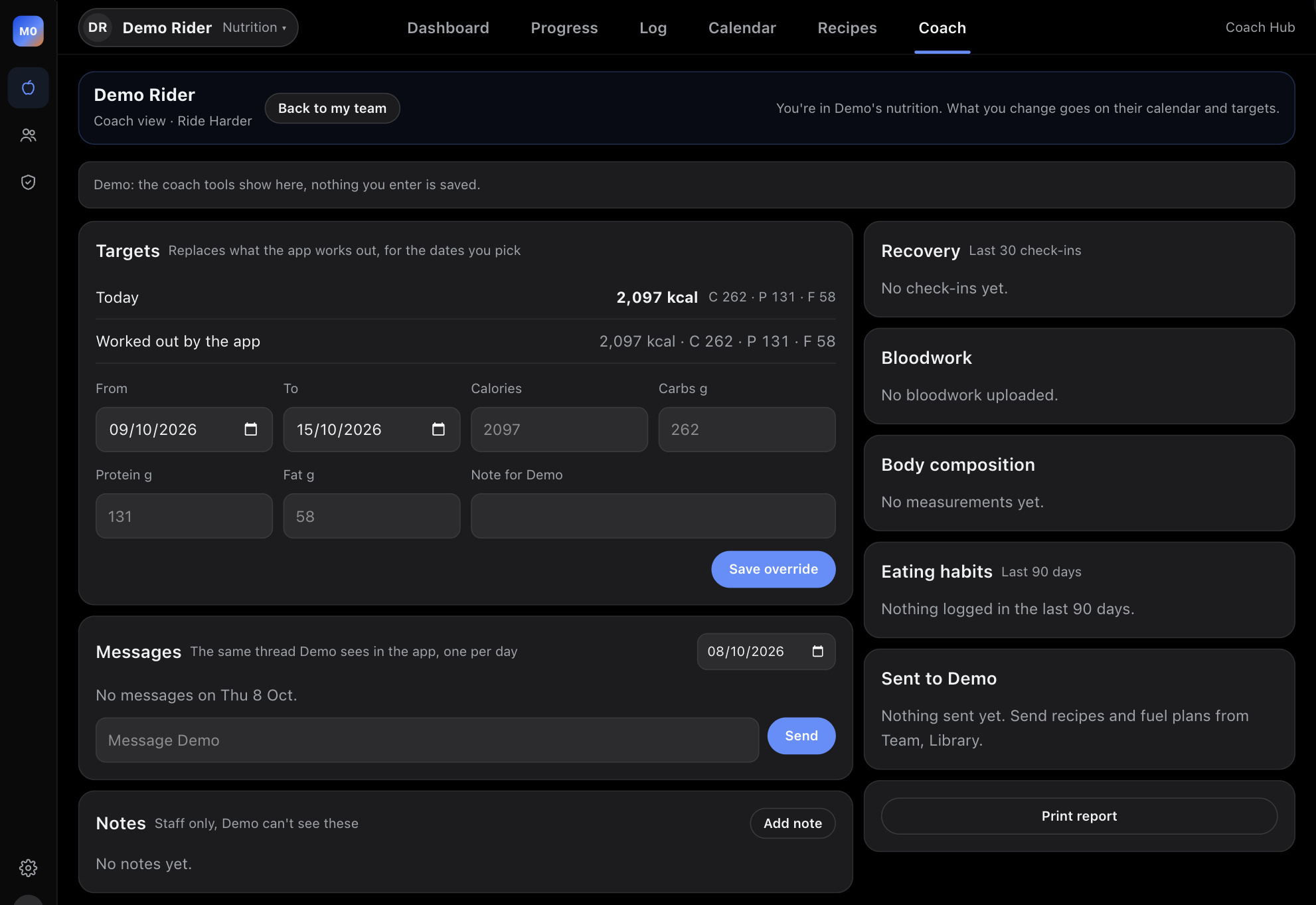
With an athlete open, a Coach tab appears after Recipes. It brings their coaching into one page.
Setting targets
- In Targets, set the dates under From and To.
- Enter Calories, Carbs g, Protein g and Fat g. Leave a box empty to keep what the app works out for that one.
- Add a note for them if you like.
- Click Save override.
The override replaces what the app works out for those dates, and it shows in their app. The panel shows today's targets next to what the app worked out, so you can see the difference. Saved overrides are listed underneath, each with a Delete button.
Everything else on the page
- Messages: the same thread they see in the app, one per day. Pick the date, type and click Send.
- Notes: for you and your staff. The athlete can't see them.
- Recovery: their last 30 check-ins: readiness, how they felt, their legs and their fuelling.
- Bloodwork: their latest results, with flagged markers.
- Body composition: weight and body fat where they have added them.
- Eating habits: days logged, usual meal times and most logged foods over the last 90 days.
- Sent to the athlete: the recipes and fuel plans you sent, and whether they have seen them.
- Print report: a clean printout of the page for a review.
Your library
Library under Team holds what your team reuses. Each team has its own.
- Recipes: the full M0VE list plus your team's own, marked Team. Click Add recipe to add one with calories, carbs, protein, fat and servings. Delete your own from its panel.
- Session fuel plans: what to take before, during and after a session, for a sport, session type and length. Click a plan to see it, then send it to an athlete for a date.
- AI create: describe a recipe or a session fuel plan, click Generate, check it, then save it to the library or discard it.
Staff
Staff is for teams with more than one coach. Only the head coach and admins can change it.
- Click Invite coach and enter their email and name.
- If they already have a M0VE account, they are added to the team straight away. Otherwise they get an email invite.
- Head coach: runs the team. One per team.
- Admin: can change staff and branding.
- Coach: works with the team's athletes.
Click Make admin or Make coach to change a role, and Remove to take someone off the team. Under Who coaches who, tap a coach's name next to an athlete to assign them.
Settings
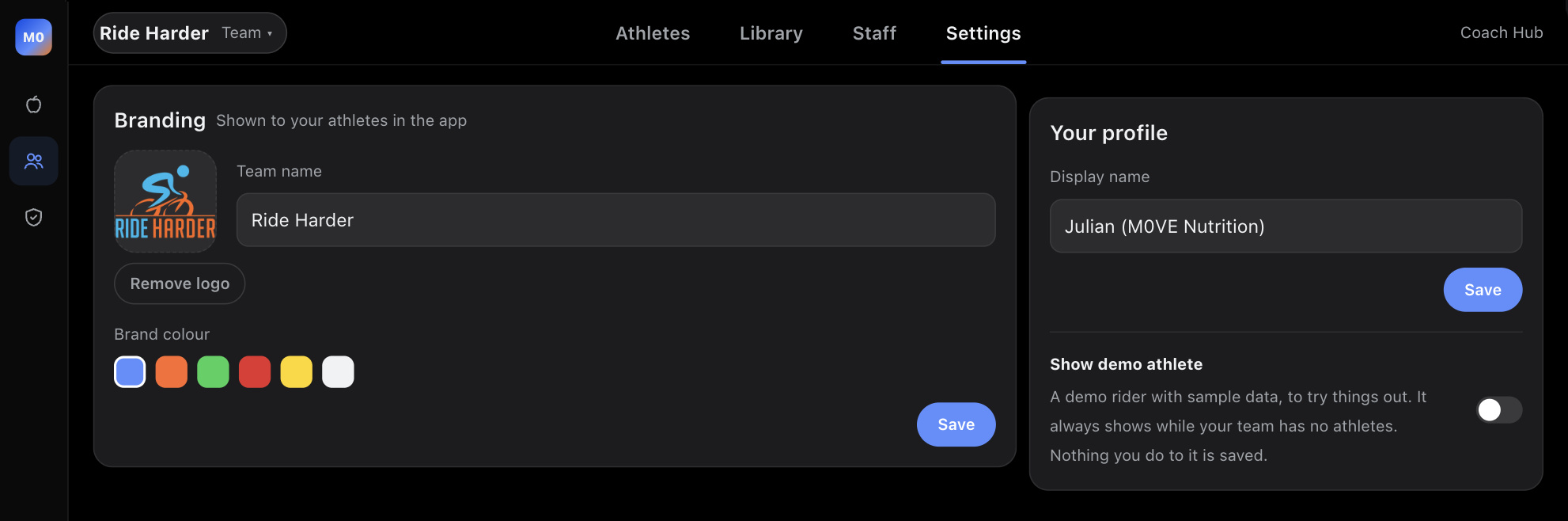
- Branding: your team's logo, name and colour. Your athletes see them in the app and the Coach Hub uses them for your team. Only the head coach or an admin can change them. Each team has its own.
- Your profile: the name your athletes see.
- Show demo athlete: shows Demo Rider on your team to try things out. It always shows while the team has no athletes.
For athletes
If your coach uses the Coach Hub, you can sign in too, with the same account as the M0VE app. You see your own Nutrition pages, Recipes and Settings.
- Food and fuel your coach adds for you shows as Added by coach.
- Add any recipe to your own day from Recipes, fitted to that meal's target.
- Skip a planned session from its panel with Can't do this session? Skip it.
- To join a team, open your coach's invite link on your phone. If a coach invites you by email, accept it in the M0VE app.
Connections
Intervals.icu, Strava, Wahoo and Apple Health connect in the M0VE apps, not on the web. Connect them once on your phone and the Coach Hub uses what they bring in. Workouts show from every source, not just Intervals.icu. Fitness, Fatigue and Form come from Intervals.icu, so they show as a dash for athletes without it.
Questions
An athlete isn't on my team
Check you have the right team open at the top left. Then check they joined with that team's invite link, or accepted your invite in the app.
"Not your athlete"
The athlete you had open belongs to a different team from the one now open. Pick them again from the list at the top left of Nutrition and the Coach Hub switches to their team.
Fitness and Fatigue show a dash
Those come from Intervals.icu. Ask the athlete to connect it in the M0VE app.
A recipe's numbers look high
Cards show one serving. A batch recipe, like 12 muffins, shows one muffin. With Fit to target on, the numbers are the scaled amount for that meal.
I can't change staff or branding
Only the head coach and admins can. Ask your head coach to make you an admin under Staff.